Providing vTAO liquidity to Aerodrome
This page walks through how to move vTAO from the Bittensor EVM to the Base network to provide liquidity on Aerodrome.
Providing liquidity in a Concentrated Volatile pool involves significant risk, including Impermanent Loss. Before following this tutorial, ensure you understand how price ranges affect your asset ratio.
For more information on how liquidity positions work, see Understanding Liquidity Provision in DeFi.
Prerequisites
To continue with the rest of this tutorial,, you will need the following:
- An EVM Wallet browser extension containing some vTAO.
- Some ETH and USDC on the Base network in your EVM wallet.
To learn about how to convert native TAO to vTAO, see Bridging and Wrapping vTAO.
Step 1: Bridge vTAO to Base
Bridging vTAO to Base is a two-step process: first, approve the smart contract to access your tokens, then execute the final transaction to confirm. To do this:
- Navigate to the TAO.app bridge page.
- Switch to the Bridge tab within the TAO.app bridge page to open the cross-chain bridge modal.
- On the From dropdown, select vTAO under Bittensor (EVM) and input the amount of vTAO you want to bridge.
- On the To dropdown, select vTAO under Base.
- Click the Approve vTAO button and sign the pop-up on the browser extension.
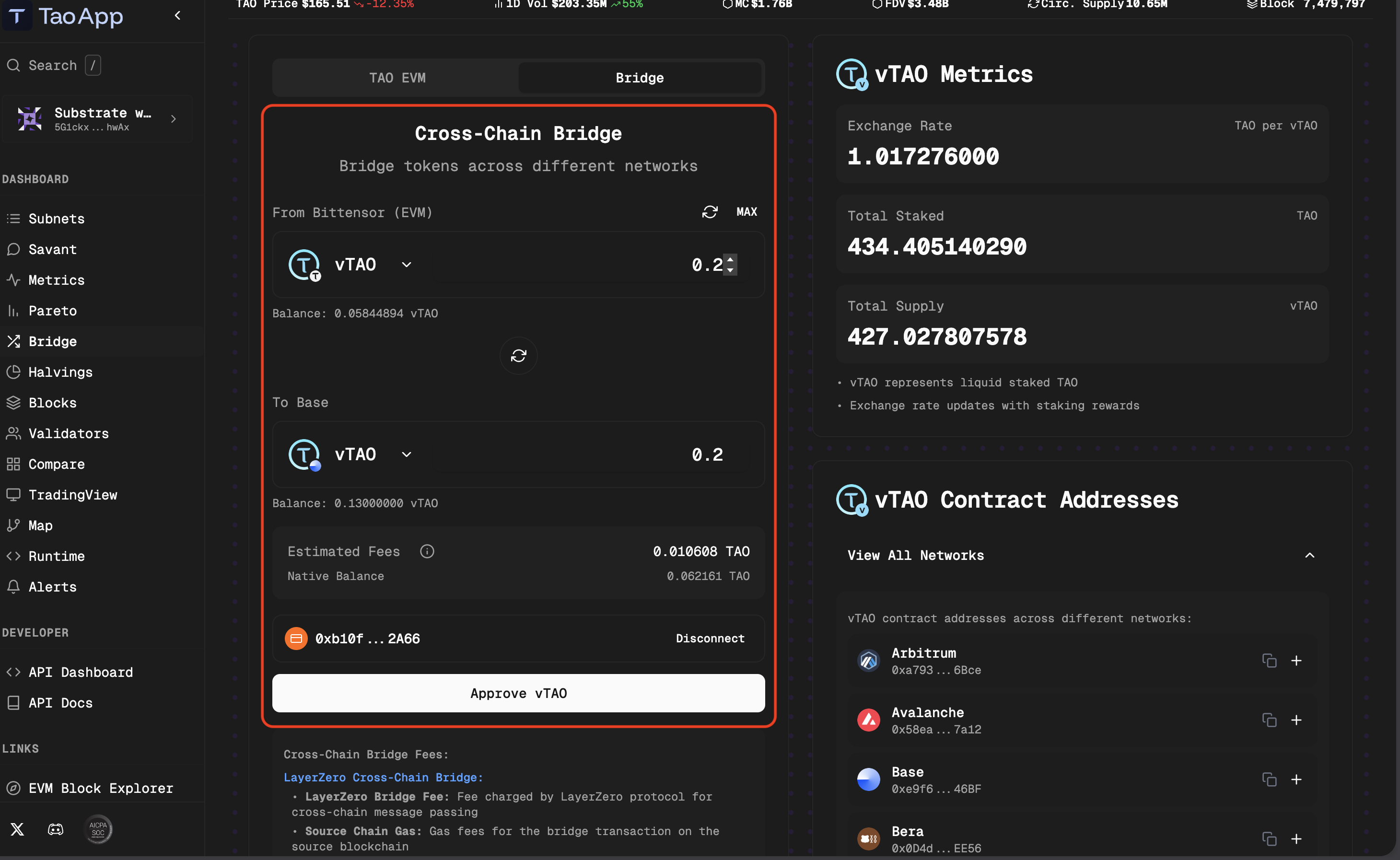
Once the approval is confirmed, click the Bridge button and then sign the pop-up on the browser extension to finalize the transaction.
Bridging vTAO from the Bittensor EVM to Base requires native TAO for gas. Ensure your EVM wallet holds a sufficient TAO balance to cover these transaction fees.
Step 2: Connect EVM wallet to Aerodrome
- Visit to the Aerodrome Finance page.
- Click the Browser Wallet button to connect your EVM wallet.
On the TAO.app bridge page, retrieve the contact address for vTAO on the Base network from the vTAO Contract Addresses section—0xe9f6D9898f9269B519E1435E6ebafF766c7f46BF.
Step 3: Configure the deposit pool
- Navigate to the Aerodrome dashboard.
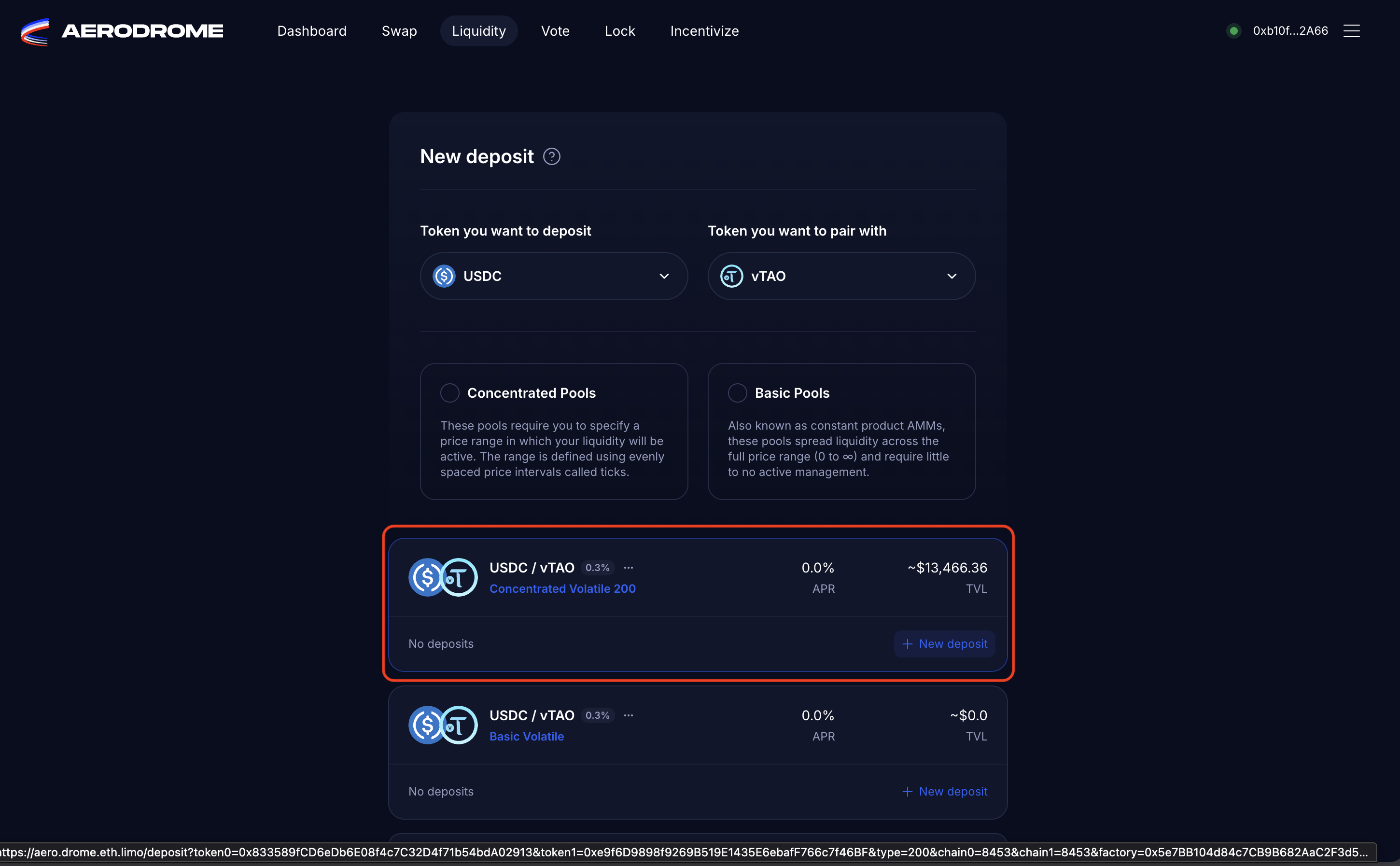
- Click on the New deposit button to open the modal.
- In the Token you want to deposit dropdown, select USDC.
- On the Token you want to pair with dropdown, paste the contact address for vTAO on the Base network.
- Open the USDC/VTAO pair tagged
0.3% Concentrated Volatile 200and click Continue.
Step 4: Deposit assets
- Ensure that you are on the New deposit page
- In the Set price range section, click the
USDC|vTAOtoggle to switch the view to vTAO. - Define your price range:
- Low: The lowest price in your range; below this, your position is 100% USDC.
- High: The highest price in your range; above this, your position becomes 100% vTAO.
- Set the amount of vTAO to deposit.
- Click Deposit and then sign the transaction in your EVM wallet.
Depositing assets on Aerodrome requires native ETH on the Base network for gas. Ensure your EVM wallet holds a sufficient ETH balance to cover these transaction fees.
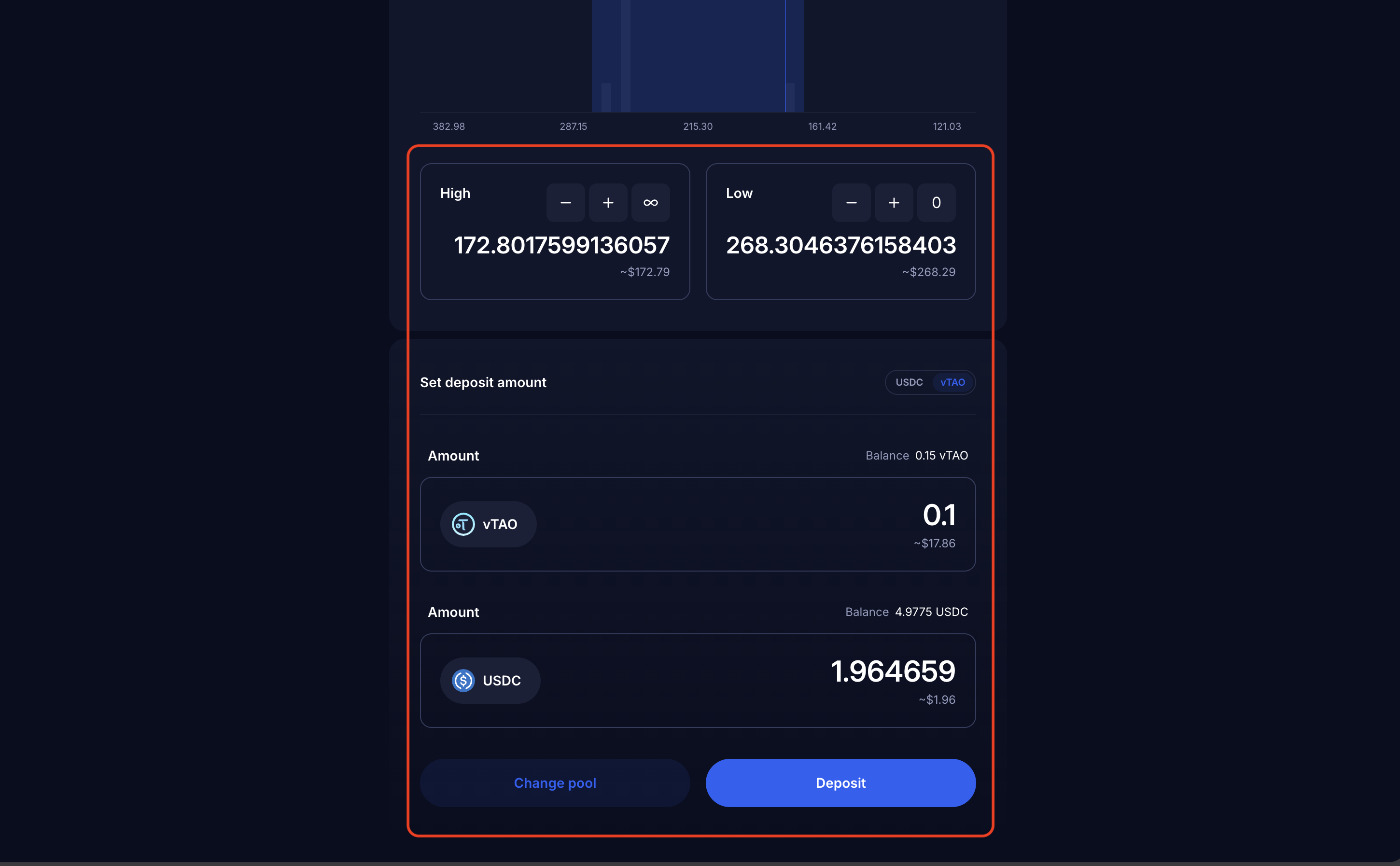
To finish your deposit, you must sign two wallet prompts: first to approve the vTAO spend, and then to finalize. The second wallet pop-up will appear immediately after the first transaction clears.
After signing the transaction that confirms the deposit, you can confirm the deposit by checking the Aerodrome dashboard.
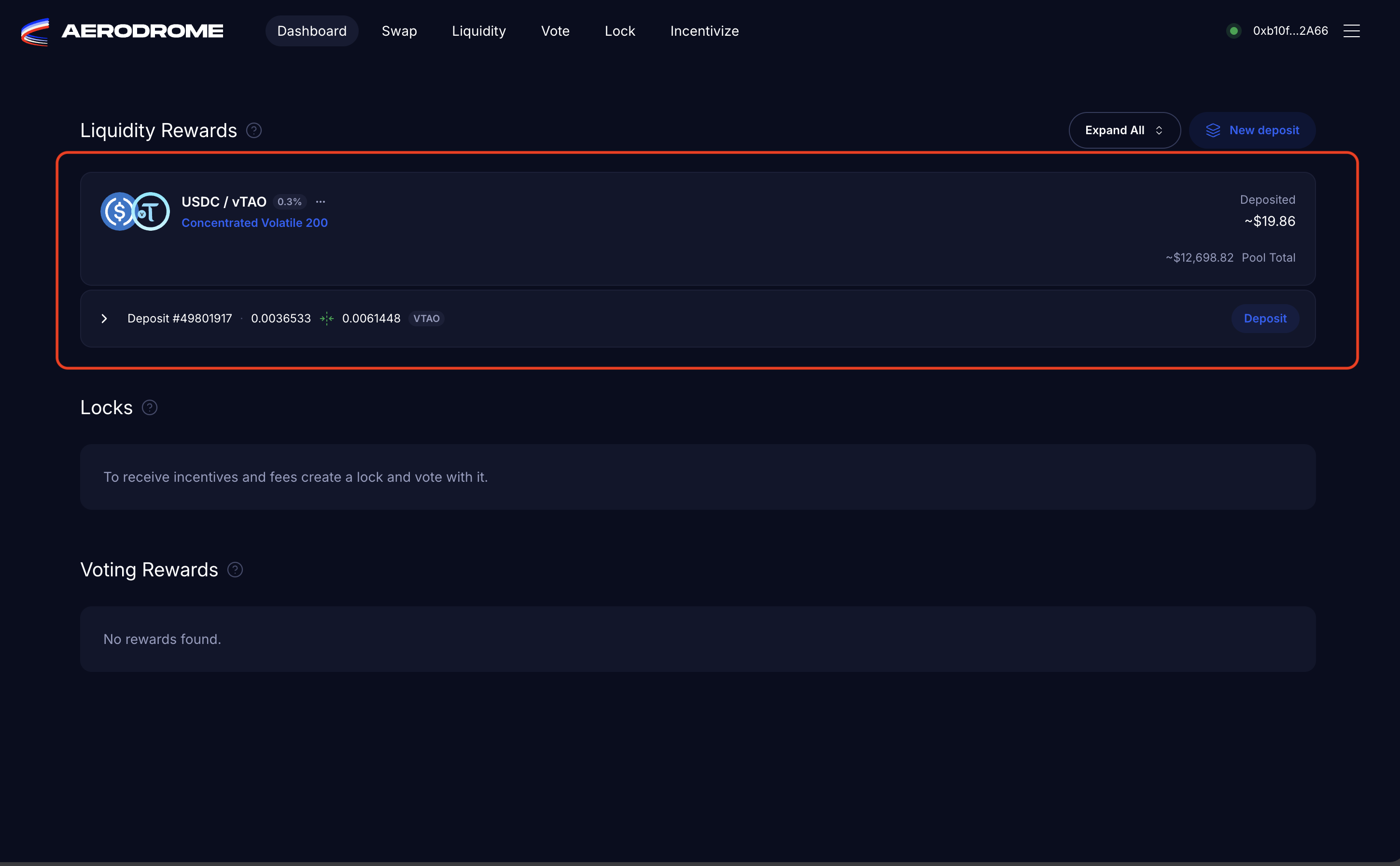
Notice the new deposit under the Liquidity Rewards section.